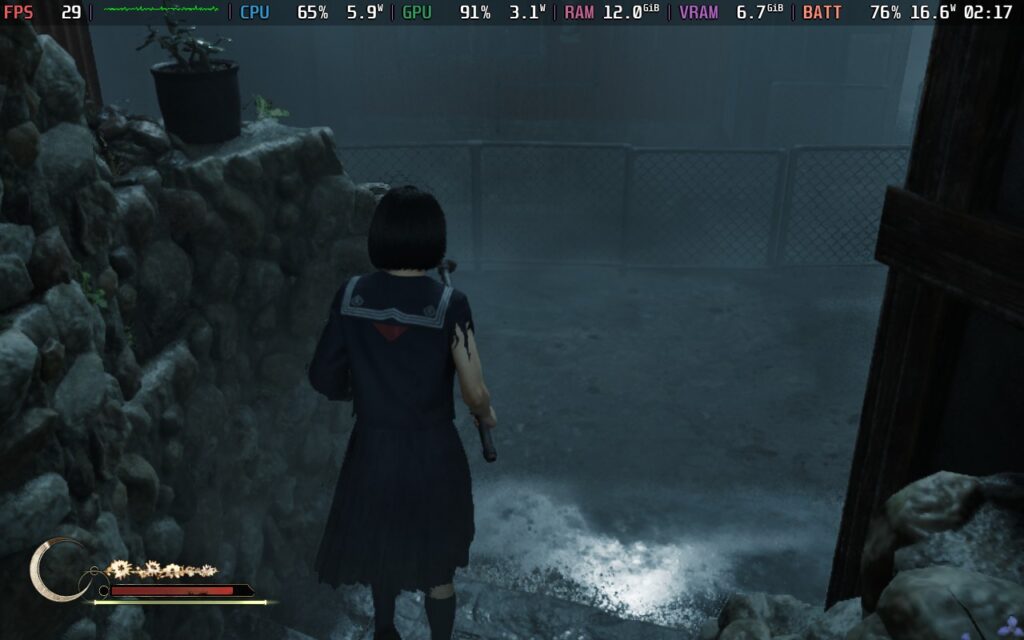
Silent Hill f runs on Steam Deck and carries a Playable rating. Start with a 30 FPS target, FSR Balanced, mostly Low settings, Lumen High indirect lighting and Screen Space Reflections. Check how it behaves in fog and on a corridor transition before committing to that profile. The handheld can fall below target in demanding scenes, and a settings list alone cannot establish how your build will run. The comparisons here describe published footage and settings. They give you a repeatable starting point for your own Deck.
Set a baseline in handheld mode
Launch the Steam version in Gaming Mode. Clear any earlier launch options you added for performance mods, and record your existing compatibility setting before changing it. Note whether you are using an LCD or OLED, the SteamOS and Proton versions, and the game version shown on the title menu. Konami’s Steam announcements identify patch 1.21 as menu version v1.3.389562. A video recorded on that patch gives you a matched game version only if your own menu shows the same one.
| Setting | Starting point | What to check after applying it |
|---|---|---|
| Resolution | Handheld panel resolution, typically 1280 × 800 when available | Interface and subtitles fit the display |
| Frame-rate target | 30 FPS | The overlay stays near the target along a repeatable route |
| Upscaler | FSR Balanced | Fine details and distant vegetation move acceptably when turning |
| Textures | Medium | Compare dips when entering the next area if memory pressure appears |
| Shadows and view distance | Medium | Lower one separately if outdoor traversal is heavy |
| Other quality settings | Low initially | Raise a setting only if the route leaves headroom |
| Indirect lighting | Lumen High for the atmosphere-first baseline | Fog and flower-heavy scenes retain their intended look |
| Reflections | Screen Space Reflections to start | Wet surfaces retain visible reflections without the higher reflection preset |
Steam Deck HQ used the FSR Balanced, Medium textures, shadows and view distance combination in its published handheld review. It kept Lumen High and screen-space reflections while tuning the rice-field scarecrow area. The outlet reported that its demanding field section stayed above roughly 25 FPS, with many other gameplay moments around 30 FPS or higher. Those figures describe the outlet’s recorded run. Use the rice-field pass below to see how often your own Deck meets the target.

Use the in-game limiter or a per-game profile in the Deck performance menu as your primary cap. If motion feels worse after you combine limits, return to one limiter and repeat the same path. An LCD panel runs up to 60 Hz and an OLED panel up to 90 Hz under Valve’s specifications. Both are suitable for a 30 FPS target at an even multiple of the display refresh rate. A higher panel refresh rate alone does not make the game render more frames.
Compare lighting with three passes
The settings and screenshots below come from published Steam Deck coverage. Frame-time results vary by scene and build. This guide does not publish its own LCD or OLED benchmark.
| Profile | Indirect lighting | Reflections | When to compare it |
|---|---|---|---|
| Atmosphere first | Lumen High | Screen Space Reflections | Start here if fog, flowers and surface highlights matter |
| Lighting reduced | Off | Screen Space Reflections | Try this if repeated outdoor dips remain after tuning shadows or view distance |
| Higher reflection comparison | Lumen High | A higher reflection preset where available | Check wet surfaces and frame time against the baseline before keeping it |
The publicly recorded 1.21 LCD and SteamOS 3.9 comparison shows settings at 1:40. It switches through Lumen lighting and reflection combinations starting around 2:34, 3:27 and 6:08. Treat it as a visual reference for the available combinations. A long video can cross different scenes between changes, so the overlay readings from two different timestamps cannot isolate the cost of one setting.
Fog and red flowers, especially at a doorway with brighter light outdoors, are useful for choosing between the first two rows. Check the visibility of the path, whether surfaces still look wet, and how the room changes when you rotate away from a light. If you prefer the reduced profile after seeing the difference, keep the same upscaler, resolution and cap while evaluating it.

Test frame pacing on a route you can repeat
Pick a save near the rice-field approach and a second save near an interior corridor. Use the Deck’s performance overlay with the frame-time graph visible. Run the same direction and camera motion for about a minute, then return to the starting save. Keep the power settings and display mode the same. A second run over the same path helps distinguish a first-traversal hitch from a dip that recurs after a restart or reload.
| Test stretch | Hold constant | Observation to write down |
|---|---|---|
| Rice-field approach and turn into fog | Save, path and camera direction | Lowest recurring reading and whether the graph recovers quickly |
| School or shrine corridor with a doorway | Same inner and outer positions | Whether the frame-time spike is always tied to the same threshold |
| Journal or inventory check | Same menu and same scene | Whether a menu-only dip clears as soon as you resume movement |
| Short encounter you can reload | Same starting position and set of actions | Whether repeated dips interfere with dodging or turning |
At 30 FPS, one frame takes about 33 ms. A visible spike stretches that frame even if the average still reads close to 30. If a profile gives a similar average but fewer large spikes on the same route, it can feel easier to control. For a formal comparison, capture frame times over equal-length runs and calculate the average and a low-percentile metric from the trace. A few numbers on an overlay give you a useful check, with less evidence than a complete trace.

Adjust the symptom you can reproduce
Repeated dips in the fields. Lower shadows or view distance one step and repeat the route before disabling indirect lighting. If you have to lower render quality more, try the next FSR option and compare silhouettes while moving. Lowering several settings in one pass makes it hard to see what helped.
A short hitch when turning a corner or entering a room. Revisit the same transition twice. Record whether the hitch appears every time, only on the first pass after launch or after changing settings. Keep it distinct from sustained dips in a busy scene. If a new mod or custom Proton choice preceded the change, restore the previous baseline and run the same route.
External controller does not take over. The compatibility details note that an external Bluetooth or USB controller may need to be selected manually. Open the Quick Access Menu and check the active controller or controller order before altering the in-game bindings. The built-in controller is the simplest control check.
Docked play has worse pacing. Check which resolution the game actually picked on the external display. Repeat one test at handheld-class resolution with the display still connected. If that restores the baseline, the internal-to-external resolution change is the first variable to investigate. Valve’s docking support page covers external display troubleshooting.
The game fails to launch or crashes immediately. Restart Gaming Mode and check that the game has finished updating. Reset custom launch options or compatibility overrides you added for testing, then use Steam’s Verify integrity of game files if the crash continues without them. Reintroduce changes one at a time once an unmodified launch works.
Know what the compatibility label promises
Valve’s Deck compatibility guide defines Playable as a category that can involve manual steps. For this game, graphics configuration and external controllers are worth checking in the current Deck compatibility panel. Compare first against the Steam edition in Gaming Mode. A particular Proton build, alternate storefront or mod can change the launch path. Keep your profile only after it survives the demanding scene along with the easy corridor.