Check your Deluxe entitlement
- In your Library, check Properties → DLC and confirm the Deluxe Upgrade is available and enabled. Reopen the game.
- Load your save and interact with a Hokora.
- Choose Change Costume, then Pink Rabbit Costume in the outfit list.
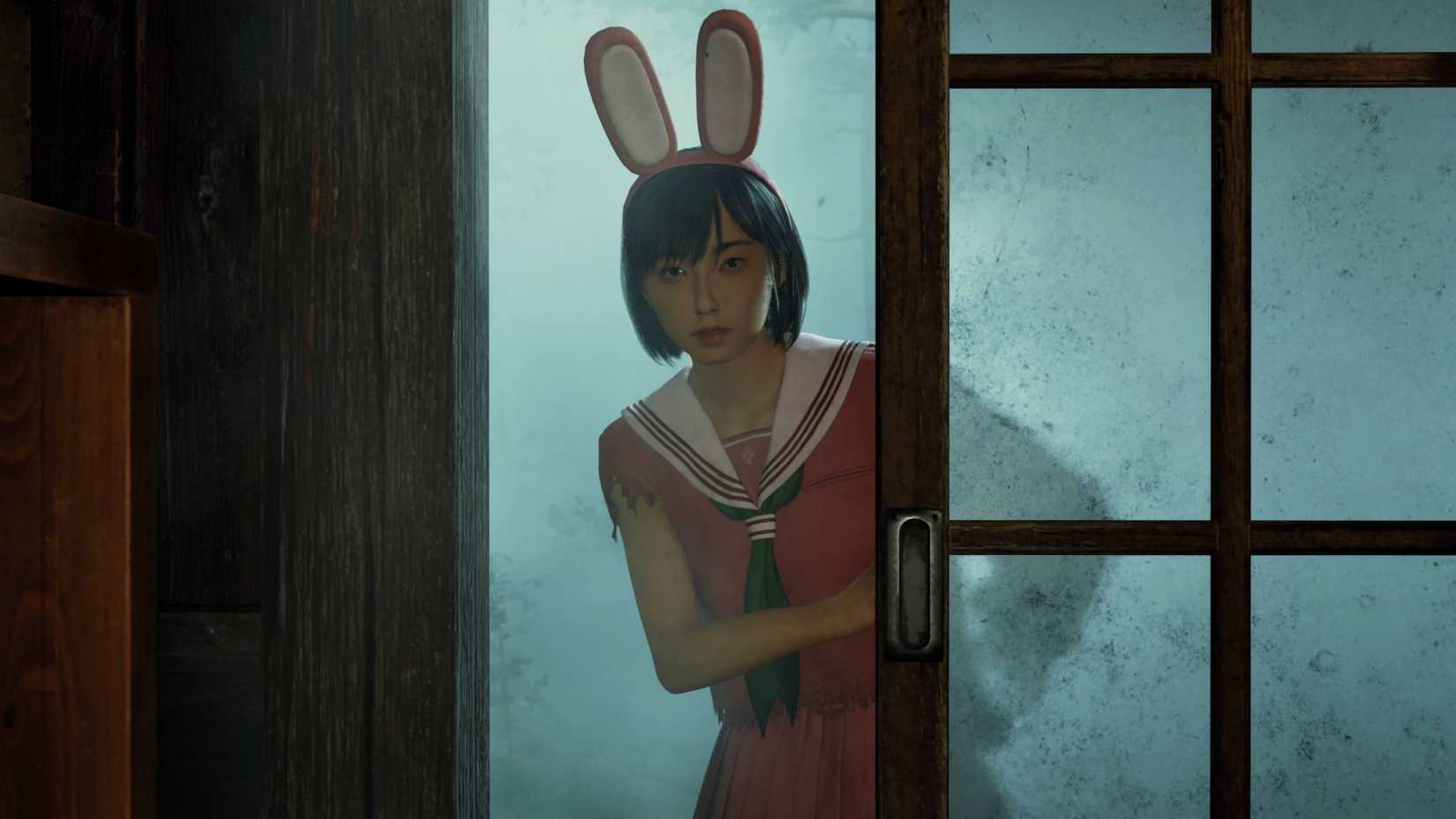
The Pink Rabbit Costume is a Deluxe bonus for Hinako. It comes with the Deluxe Edition and the separately listed Deluxe Upgrade. To put it on during an existing playthrough, interact with a Hokora, select Change Costume, then choose and confirm Pink Rabbit Costume. Konami lists the outfit and the shrine menu on its official edition comparison.
If you already own the game, check your purchase before spending anything. The full Deluxe Edition includes the base game. The upgrade adds the Deluxe extras to a compatible copy you already own. Once the costume appears in the shrine list, your ownership check is complete and you can equip it there.
Check which purchase includes the Pink Rabbit Costume
| What your receipt shows | What to check next |
|---|---|
| Deluxe Edition | The costume is included. Launch the game on the account that owns the edition and visit a Hokora. |
| Base game plus Deluxe Upgrade | The upgrade includes the costume. Check the add-on against the account and store you use for the base game. |
| Standard Edition | Check your platform's Deluxe Upgrade listing before considering a purchase. |
| Standard Edition with a launch pre-order bonus | The launch outfit was the White Sailor School Uniform. Check separately for Deluxe ownership if you want the pink one. |
Konami's launch promotion also listed Omamori: Peony and a consumable item pack among the early purchase or pre-order bonuses. The White Sailor School Uniform and Pink Rabbit Costume can appear next to each other in the outfit list when the account has both. Seeing the white uniform or finding bonus items at a Hokora only tells you about those individual extras. Konami's launch bonus announcement
If you own the base game and need the upgrade, open the listing for your game platform and sign in to verify what your account already owns. The Steam listing requires the Steam base game. The PlayStation and Xbox links below are U.S. listings. Use your own storefront region for an account-specific offer.
The digital artbook and soundtrack may show up through a bonus application. The costume is equipped from within the base game. If a launcher offers an app for the soundtrack, start Silent Hill f itself to get to the Hokora. If your purchase record uses a bundle name, open the bundle details and look for the Deluxe Edition or Deluxe Upgrade included in it.
Equip the Pink Rabbit Costume on an existing save
- Start Silent Hill f and continue your current playthrough.
- Approach a Hokora, one of the small shrine save points, and interact with it. If you are still in the opening scenes, continue to a shrine you can use.
- Select Change Costume. The menu also includes shrine actions such as Record and Draw Omamori. You may see a separate Bonuses entry on the same screen.
- On the Choose Costume screen, highlight Pink Rabbit Costume. Look for the pink skirt and top, green necktie, and upright rabbit ears in Hinako's preview.
- Use the on-screen Confirm action, then close the shrine menu. Check Hinako's outfit when control returns to you. Use the same menu to swap to another outfit later.

If you open Bonuses, go back one level and look for Change Costume in the shrine menu. The outfit selector uses names and previews for the available uniforms. Hovering over a row shows a preview, so confirm the selection before you back out to verify the outfit in gameplay.

The outfit changes Hinako's appearance. In gameplay, the ears and pink clothes distinguish it quickly from the sailor uniforms, even when the lighting shifts as you move indoors. If you prefer the original look, reopen Change Costume and select Navy Sailor School Uniform.

Find the cause when the Pink Rabbit Costume is missing
Steam
Open Library, right-click SILENT HILL f, and select Properties, then DLC. Steam's DLC management view shows which extras the account owns and whether they're installed. Look for the Deluxe content and enable installation if the client shows it as owned but unchecked. Wait for the download if Steam queues one, then relaunch the game and test the same Hokora on your save. Steam Support's DLC management instructions
If there is no Deluxe entitlement in the client, check the receipt while signed into the account that made the purchase. Match the title to the order itself. A library entry for the base game can look the same with or without the upgrade.
PlayStation 5
Sign in to the purchasing account. Open Game Library and Your Collection, select the main game and look in Add-Ons for your purchased content. Check whether it has downloaded. With a physical copy, compare the disc's region to the country or region of the account that owns the add-on. PlayStation Support treats a mismatch as a possible compatibility issue for disc-based games. PlayStation's add-on troubleshooting instructions
If the order is present and the add-on is still missing, go to Settings, Users and Accounts, Other, then Restore Licenses. Restore the relevant license and start the game again. PlayStation also documents a Restore License shortcut from the game's options menu. PlayStation's license restoration instructions
Xbox Series X and Series S
In My games & apps, highlight SILENT HILL f, press the controller's Menu button and open Manage game and add-ons. Select the game installation to inspect the available extras. If the Deluxe add-on is offered for installation, select it and apply the change. After the console finishes, fully quit and reopen the game, then check Change Costume. Xbox help for finding installed add-on content
The Xbox store lists the upgrade for Xbox Series X|S and PC and identifies it as Xbox Play Anywhere. If you're using the Microsoft version on PC, check the Microsoft account and its library. The Steam listing is for the Steam version. Xbox store details for the Deluxe Upgrade
Confirm where the failure happens
If Change Costume opens and Pink Rabbit Costume is listed, the game is seeing the outfit. Highlight it, confirm, and look for the ears in the world after leaving the shrine. If the selector opens and shows only other outfits, keep that save and check the account and add-on. You can repeat the same test there once the store client has finished installing content.
If the Steam purchase is hard to identify, use the account menu, open Account Details, then choose View purchase history. Pick the specific order and compare it with the edition or upgrade names above. This is especially helpful if the library only displays the base game's title. Steam Support's purchase history instructions
Why the costume disappeared after Steam patch 1.02
Konami's October 2, 2025 Steam patch corrected an issue that let players access edition-specific content without owning it. The patch removed unowned bonus skins from the list. If a player had saved while wearing an unowned skin, loading the save switched Hinako back to the default outfit. Konami also documented a launch message asking the player to try downloading the missing bonus again. Konami's Steam patch 1.02 notes
The message can therefore accompany a missing entitlement. If the outfit vanished on an old Standard Edition save, check what the account purchased before treating the message as a download failure. If the account actually owns Deluxe, follow the installation checks above and use the shrine list to confirm the result.
If Deluxe ownership and installation both check out but Pink Rabbit Costume remains absent, keep the platform, edition or add-on name, installed game version, and a screenshot of Choose Costume ready. A receipt identifies the entitlement, while a menu screenshot shows where it fails to appear in the game. Find Konami customer service for your region